GTAXTREME
Players say GTA 6 captures led to short Xbox suspensions. Here’s the setting that lets you watch your next clip before it goes to the Xbox network.
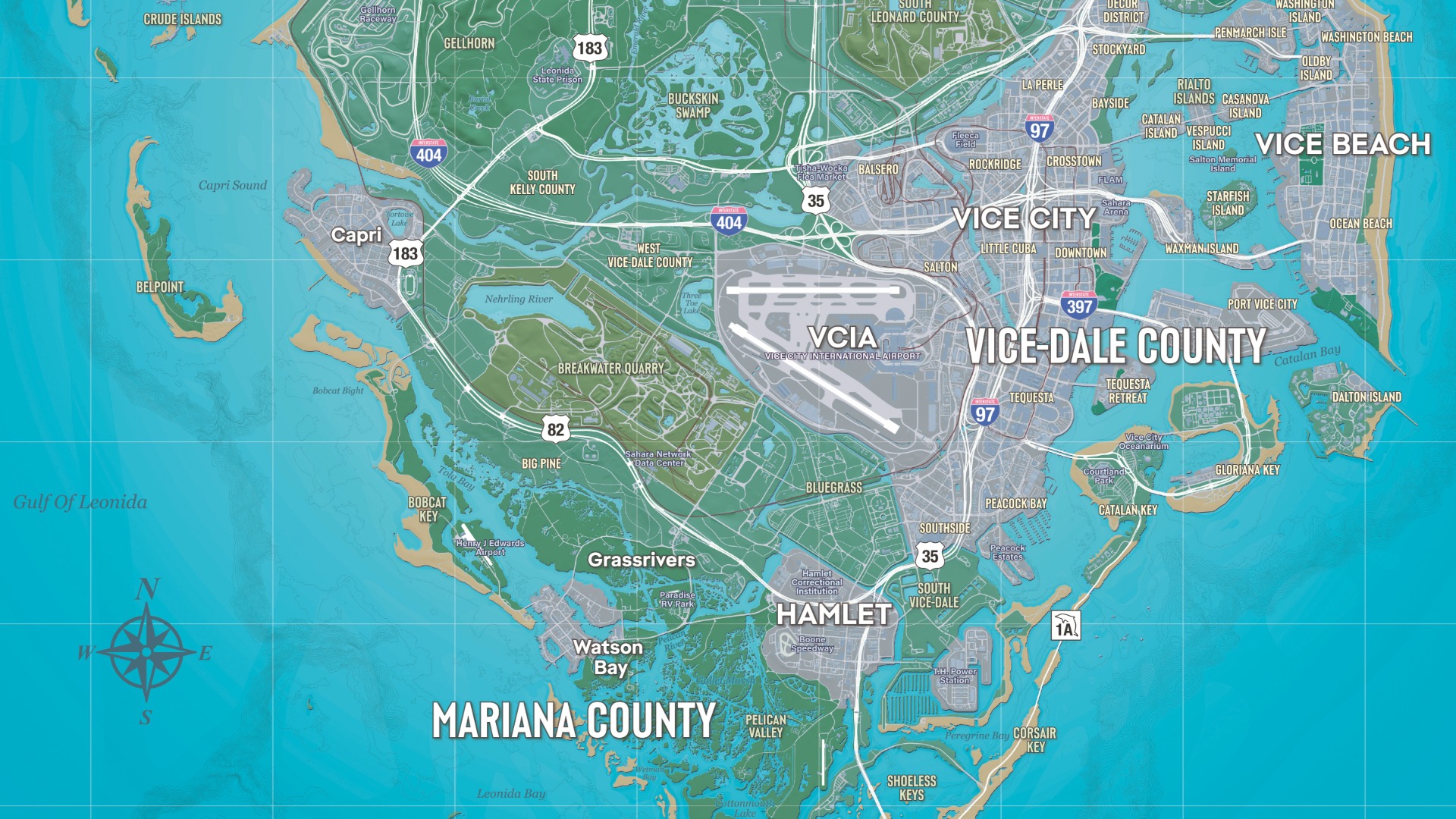
Say you roll a car onto its roof on Vice City beach. You hit capture, figuring you’ll decide later whether the landing is funny enough to send to your friends. Depending on your settings, the clip can reach the Xbox network while you’re still trying to get the car off the sand. That extra step is what the GTA 6 suspension stories are about.
What happened to the beach clip?
On November 20, a Series X player described recording a 28-second clip in story mode. They said they found a blocked capture after the automatic upload and received a two-day suspension. By their account, the scene showed beachgoers in swimwear. The Xbox message didn’t identify a particular image as the trigger, so the idea that a filter mistook swimwear for nudity is the player’s explanation.
A second player reported a two-day suspension after recording a story cutscene and said they could still play the campaign. How many accounts were affected and why Xbox acted on each clip remain open questions.
How to turn off Xbox network auto-uploads
Xbox applies its Community Standards to material uploaded to its network, including footage from mature-rated games. If you’d like to see the whole clip before it leaves your Series X or S, here’s where to go.
- Press the Xbox button and open Profile & system → Settings.
- Select Preferences → Capture & share.
- Under automatic uploads to the Xbox network, select Don’t upload. OneDrive has a separate setting if you want captures to stay entirely on the console.
You can keep using the capture button. Your next stunt can sit on the console until you’ve watched it through and decided whether to share it manually. Changing the setting leaves earlier uploads where they are.
If Xbox has already sent you a notice
Sign in with the affected account and open your enforcement history. Check which features are restricted, when the restriction ends and whether the notice offers a case review. That’s where you’ll find the details that apply to you, including whether your restriction has the same duration as the one in the beach story. Open Xbox enforcement history