GTAXTREME
Make Vice City easier on the eyes with a simple setup checklist for HDR, motion blur, camera movement and your TV. Here is what to change first.
Before you disappear into Leonida for the evening, spend a few minutes getting the picture comfortable. Bright skies, dark streets and a moving camera can feel very different from one screen to the next.
The useful changes are simple: set up the TV, check HDR, then adjust the effects that bother you. The launch game targets 30 fps; these tips don't unlock a hidden 60 fps mode.
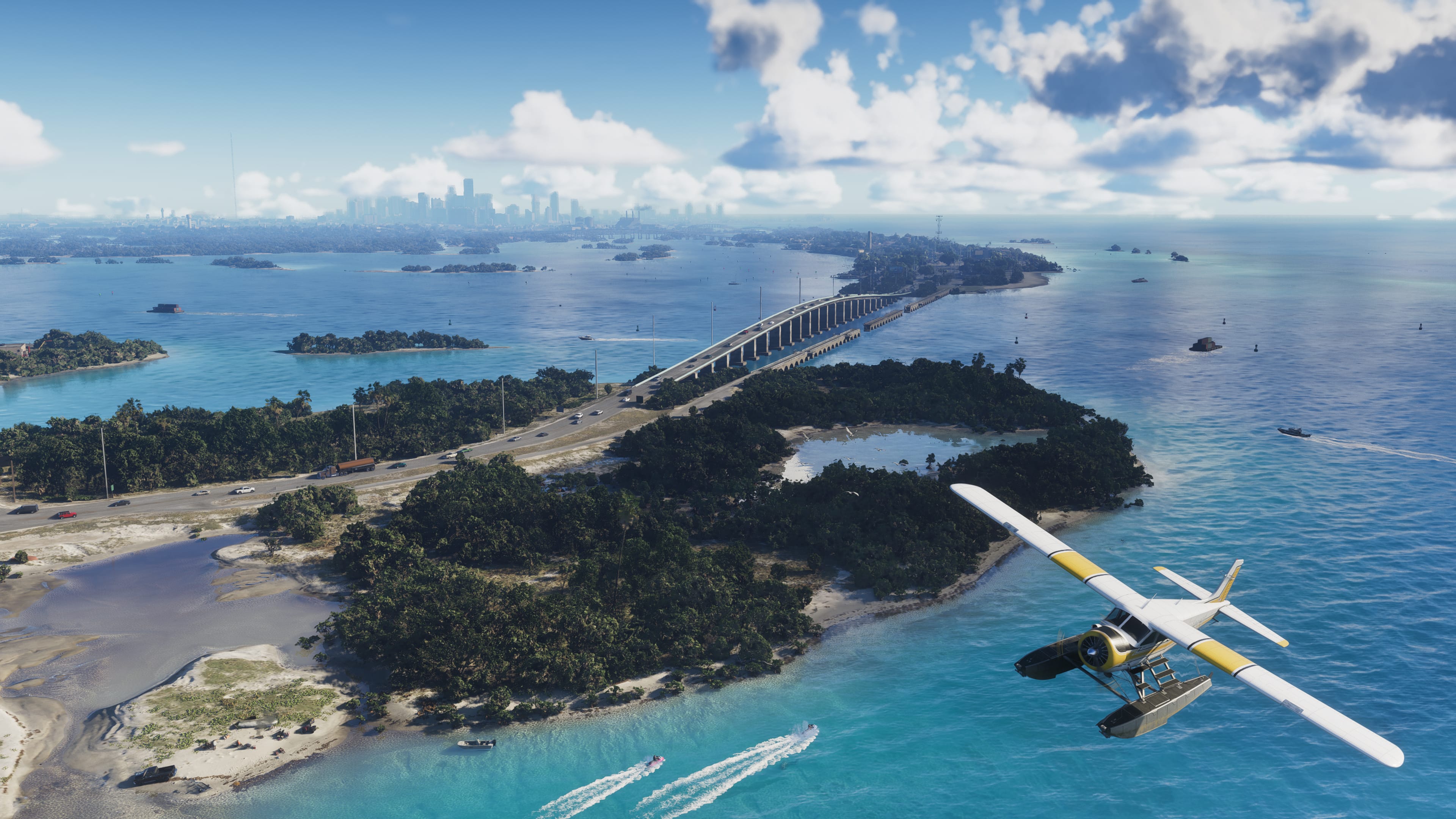
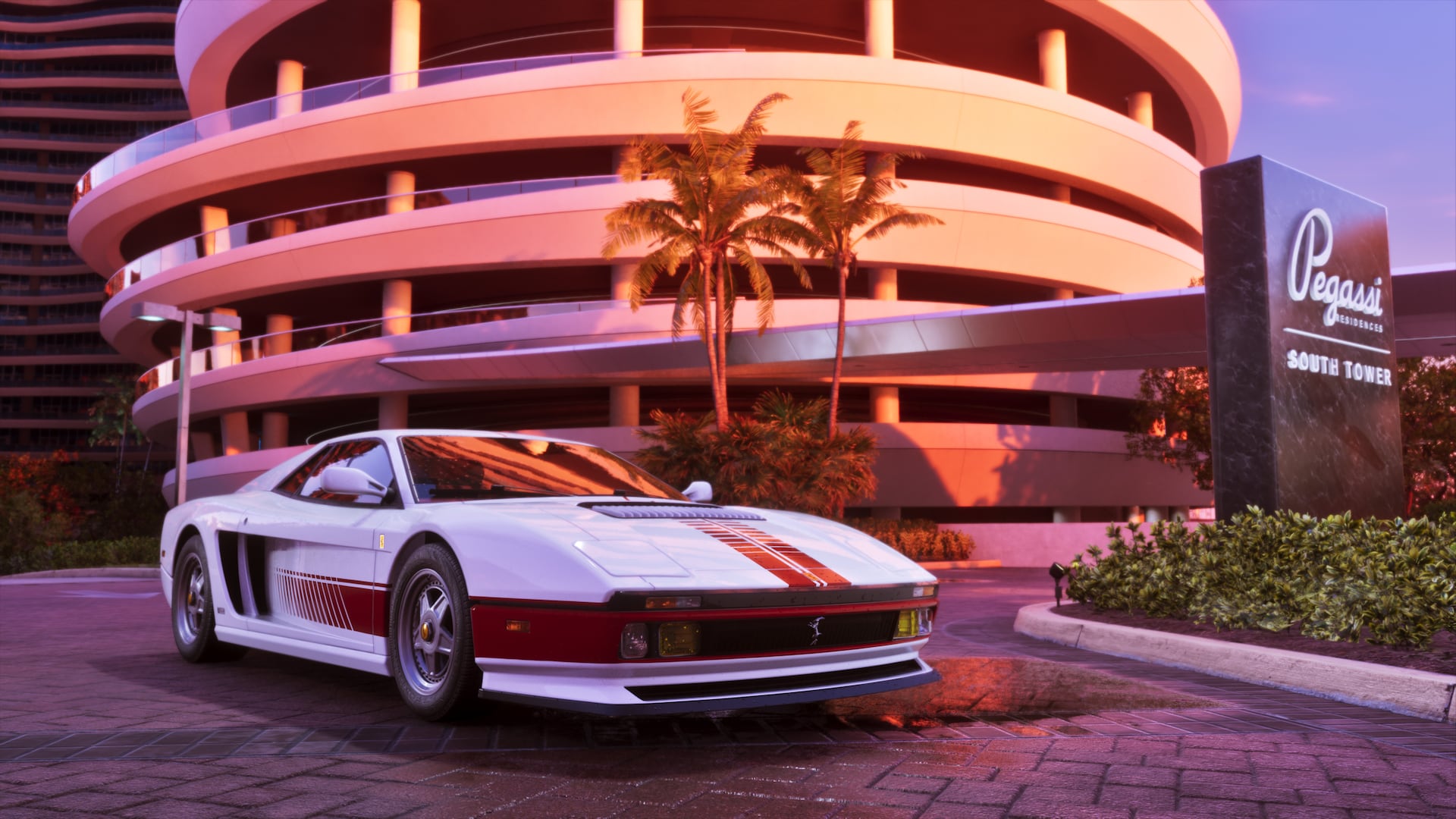
Leonida has plenty of detail worth getting your screen set up for. Official GTA VI screenshot: Leonida Keys 01, © Rockstar Games.
The quick setup
| What bothers you? | Start with | What you're changing |
|---|---|---|
| Controls feel delayed | TV Game Mode | Display response |
| Bright skies lose detail | HDR calibration | Your screen's picture |
| Panning looks too smeared | Motion Blur Strength | Motion appearance |
| Movement makes you uncomfortable | Camera Shake / Camera Bob | Camera movement |
| Effects distract you in fights | Hit / Awareness effects | Visual clutter |
Our starting point: Game Mode on, TV motion smoothing off, HDR calibrated for your screen. Then lower blur or camera movement if it bothers you. Change one thing at a time so you can tell what helped.
1. Turn on your TV's Game Mode
Start outside the game. Find the gaming preset on your TV or monitor; if your setup supports automatic low-latency switching, check that it's working.
Why bother? A screen can add delay even when the game is running normally. Game Mode is about how quickly the display responds, so don't expect the game's frame rate to change.
2. Switch off TV motion smoothing first
TV brands give this different names. On some Samsung sets, for example, you'll see Game Motion Plus. Start with it off, especially if aiming feels disconnected from your stick movements.
If you prefer the smoother-looking picture with it on, compare both on your own set. Samsung documents a trade-off with input delay; generated TV frames aren't an extra performance mode in the game. Samsung's Game Bar guide.
3. Check your console's HDR setup
On PS5, go to Settings → Screen and Video → Video Output → HDR. Sony's On When Supported option lets compatible content use HDR; run Adjust HDR for the screen you're playing on.
On Xbox, check the console's TV and display settings and the HDR calibration options available for your setup. Do this with your normal gaming picture preset active. Sony's HDR instructions.
4. Calibrate HDR in GTA 6 as well
The console setup and the game's calibration are separate steps. Open GTA 6's HDR calibration and follow the on-screen prompts.
Skip the copied magic number. A value someone likes on one OLED or LCD may look wrong on yours. Use the instructions and check that bright details remain visible without making the whole image dull.
5. Playing in SDR? Adjust brightness there
Use the game's brightness calibration for your normal SDR picture. Check a dark interior and a bright outdoor area before settling on it.
If shadows become solid black or the scene looks washed out, revisit the calibration. Turning everything brighter isn't the same as seeing more detail.
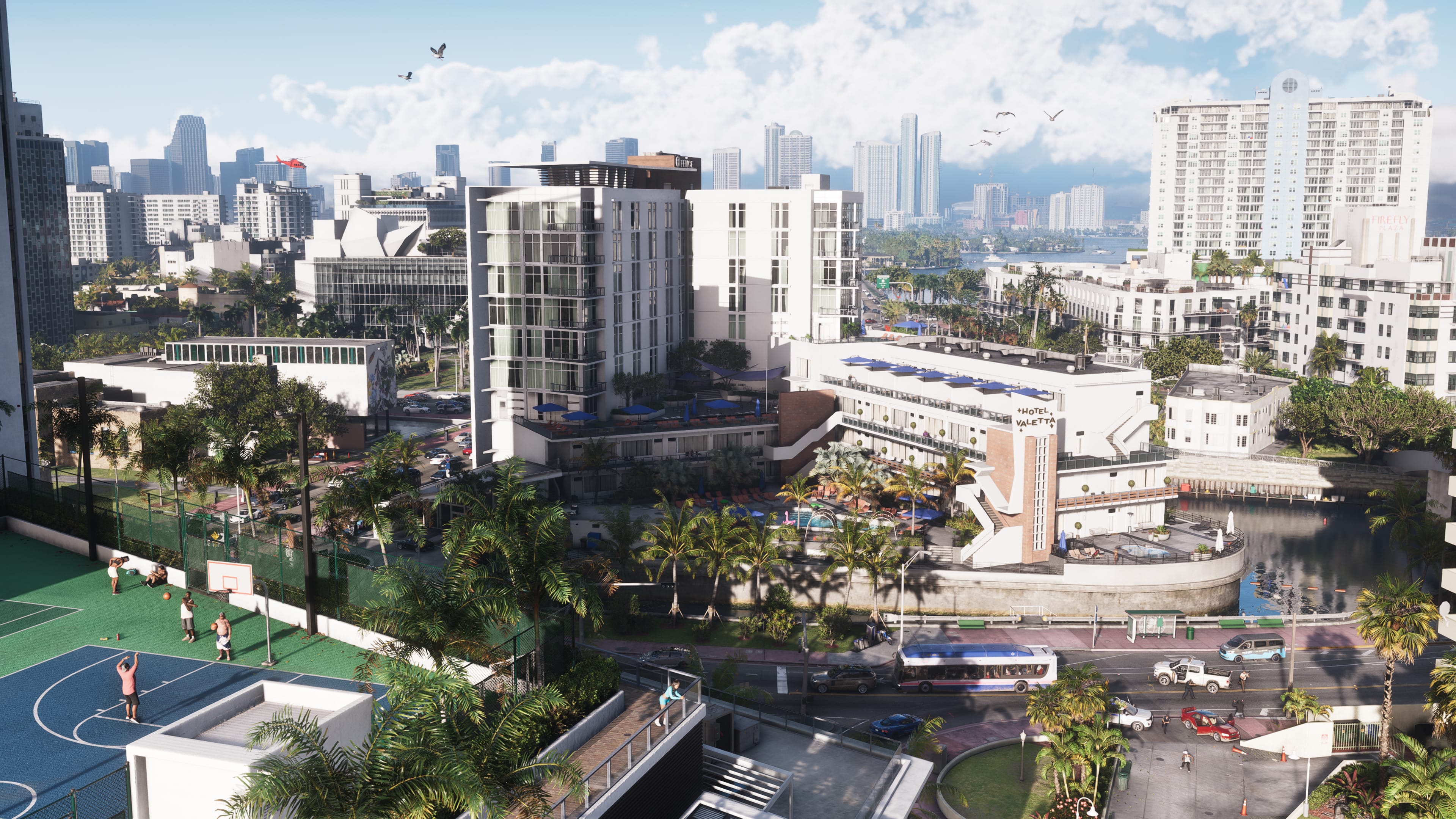
Check bright skies and shaded streets when adjusting your picture. This promotional image is illustrative, not an HDR comparison. Vice City 03, © Rockstar Games.
6. Try a lower Motion Blur Strength
If the world smears too much when you turn, lower Motion Blur Strength. Try the same camera pan with a little blur and with less of it, then keep the version you prefer.
Some players like the extra softness at 30 fps; others want a clearer image in motion. Treat it as a preference, rather than a free FPS upgrade.
7. Reduce Camera Shake if it gets in the way
Action can feel more dramatic with a moving camera. It can also make it harder to stay comfortable. If shake distracts you, lower the Camera Shake setting and see whether that helps.
Our pick: Comfort comes first. You don't need to keep a stronger effect just because it looks cinematic.
8. Check Camera Bob separately
Camera Bob is another movement setting, so give it its own check. Reducing shake doesn't necessarily address the walking motion that's bothering you.
Take a short walk, turn the camera and repeat after adjusting it. Keep the combination that feels comfortable during ordinary exploration.
9. Make looking and aiming feel right
Try the horizontal and vertical look or aim sensitivity options if turning feels too slow or too twitchy. Start with small changes.
Watch the label: “Roll Deadzone Range” in the camera settings isn't automatically the stick or aiming deadzone you're looking for. Read the help text before copying somebody else's preset.
10. Tone down distracting screen effects
The menu includes separate Status, Hit and Awareness Effects Intensity controls. If the screen feels busy during encounters, try reducing the effect that bothers you.
Keep enough feedback to understand what's happening. The goal is a clearer, more comfortable picture, not switching off every cue.
Can you get 60 fps on console?
The launch material describes a 30 fps target, and the reviewed menus don't show a selectable 40 fps or 60 fps mode. A target also doesn't guarantee a perfectly steady frame rate in every scene. Rockstar's explanation in its TechRadar interview.
What about PC settings? Official launch pages list PS5 and Xbox Series X|S. This guide covers those console setups; a GTA 5 PC preset won't describe GTA 6's menus.
Before you close Settings: Take a short drive, step into a shaded area and pan across a bright skyline. If all three feel comfortable, get back to the game instead of chasing someone else's slider values.
More GTA 6 guides
- Cars for your garage wishlist
- Weapons worth your money
- Ways to make money
- All chapters and story missions
Sources & image credits
Checked November 20, 2026. Menu labels were checked against GTA6DB: Settings menu evidence and ViceManual: Settings; camera/accessibility options also appear in Allthings: Accessibility options. These are setup suggestions based on documented menus, not our own console performance test. Official illustrative screenshots © Rockstar Games.